
# System Logs
System Logs
In this section, System Logs will record the events in 2 different types of log, which are Audit Log and Event Log.
- Audit Log will record the behaviour of the usersin the gateway.
- Event Log will record the behaviour of the system in the gateway.
- Machine Data is a collection of data collected by the machines.
# Audit Logs
Navigation Menu
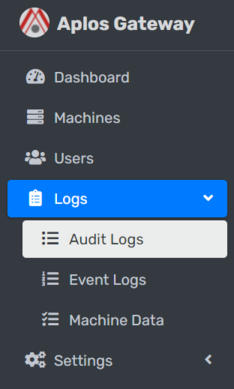
On the left sidebar, click on Logs dropdown and navigate Audit Logs.
# Filter Log Types
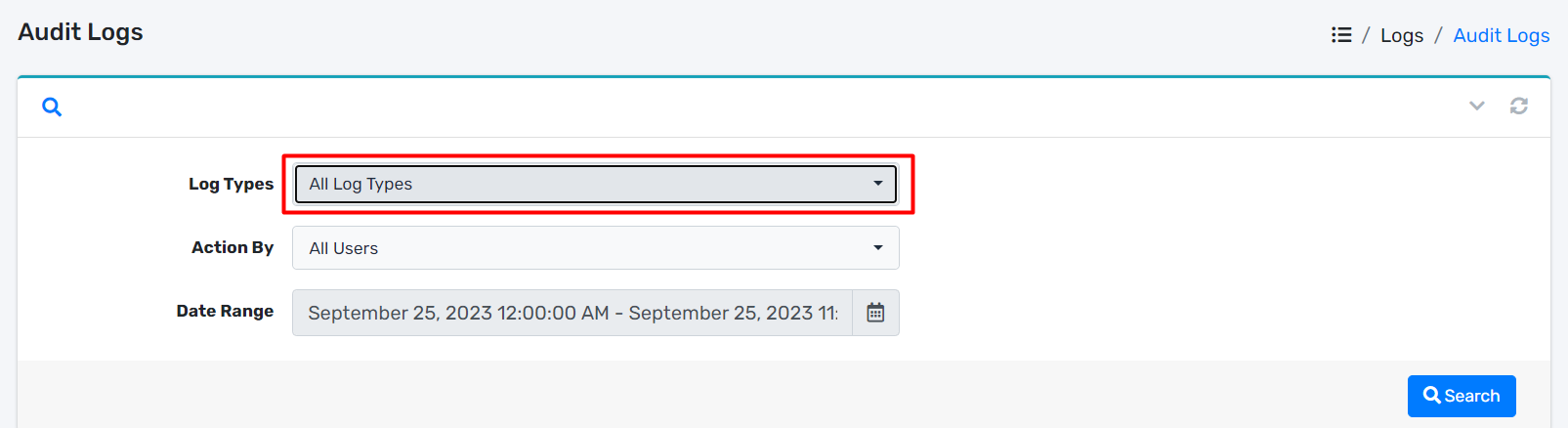
- Locate Log Types dropdown.
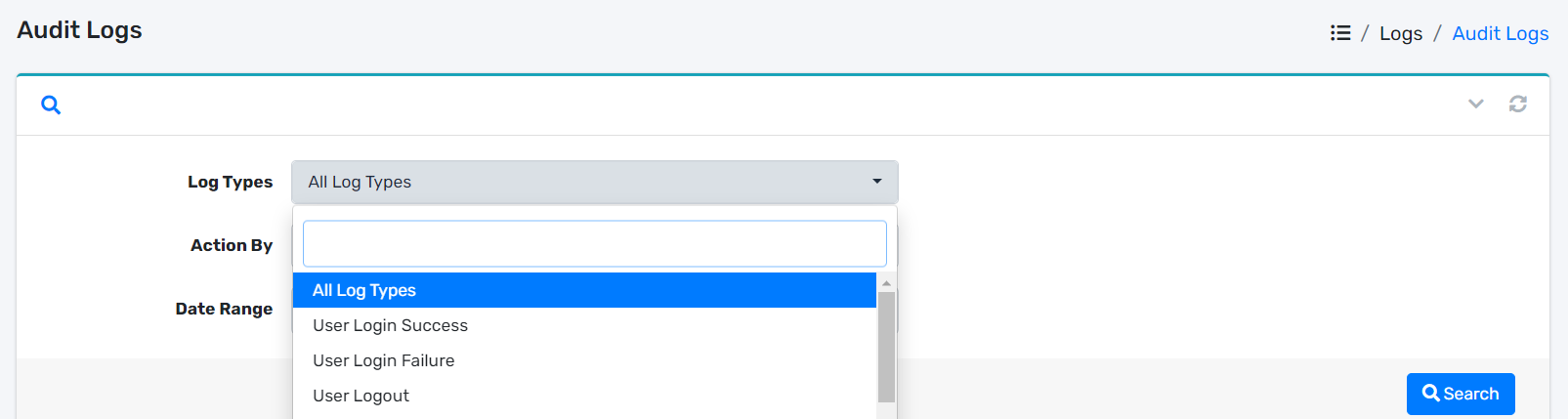
- You can choose the Log Types from the dropdown.
# Filter Users
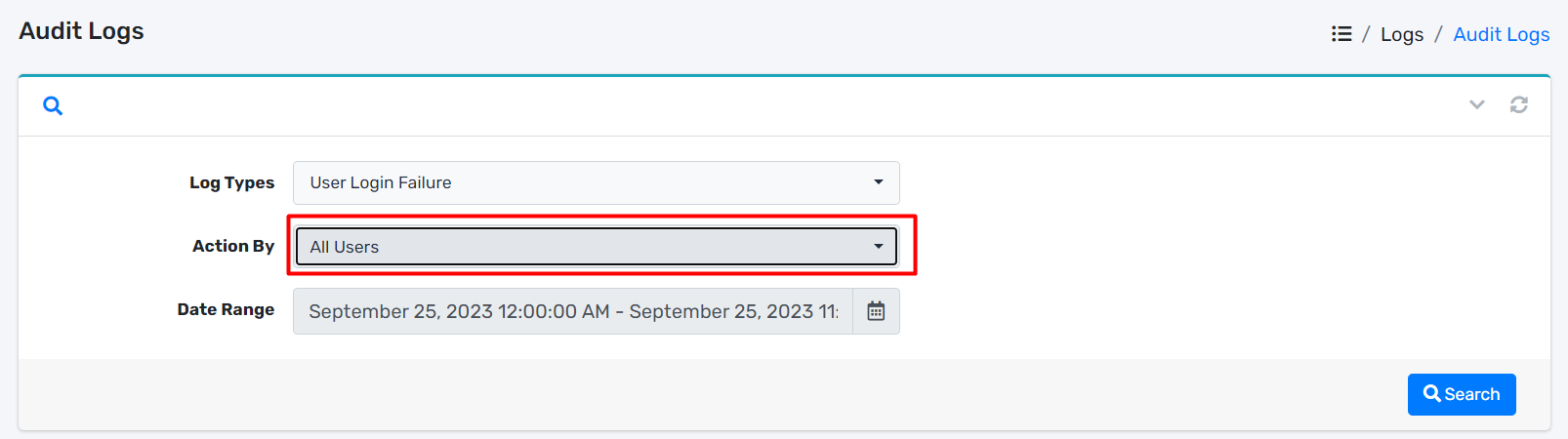
- Locate Action By dropdown.
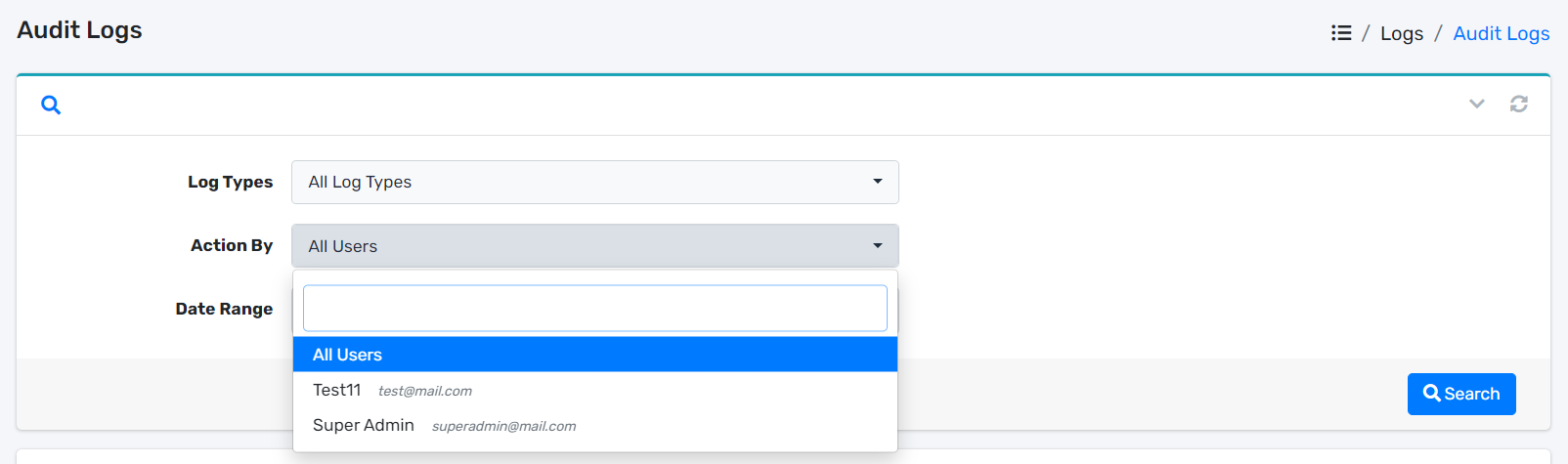
- You can choose the User from the dropdown.
# Filter Date Range
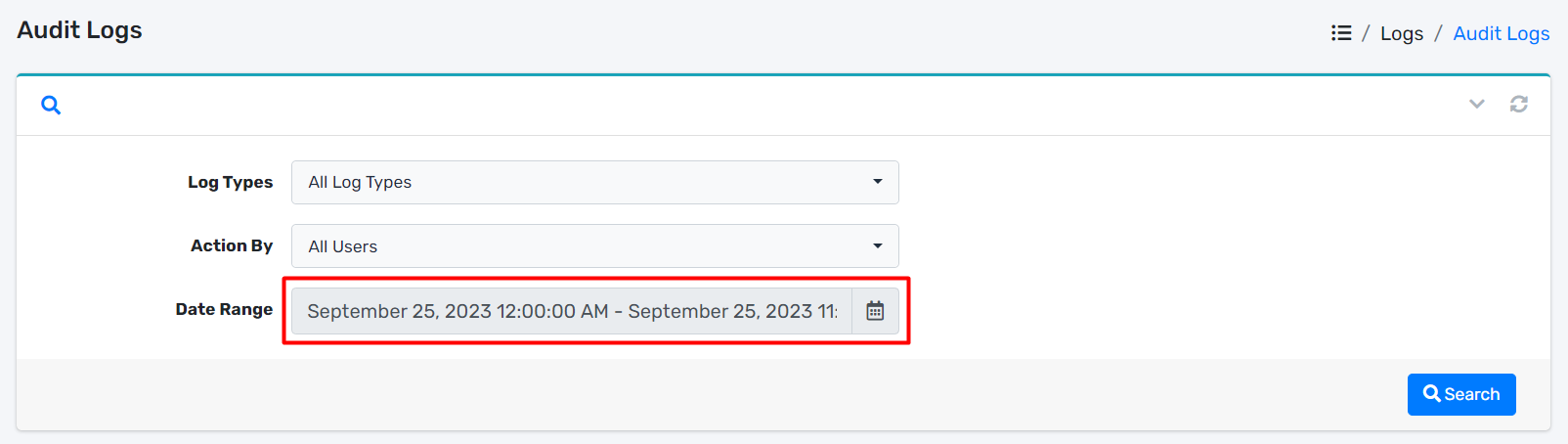
- Locate Date Range dropdown.
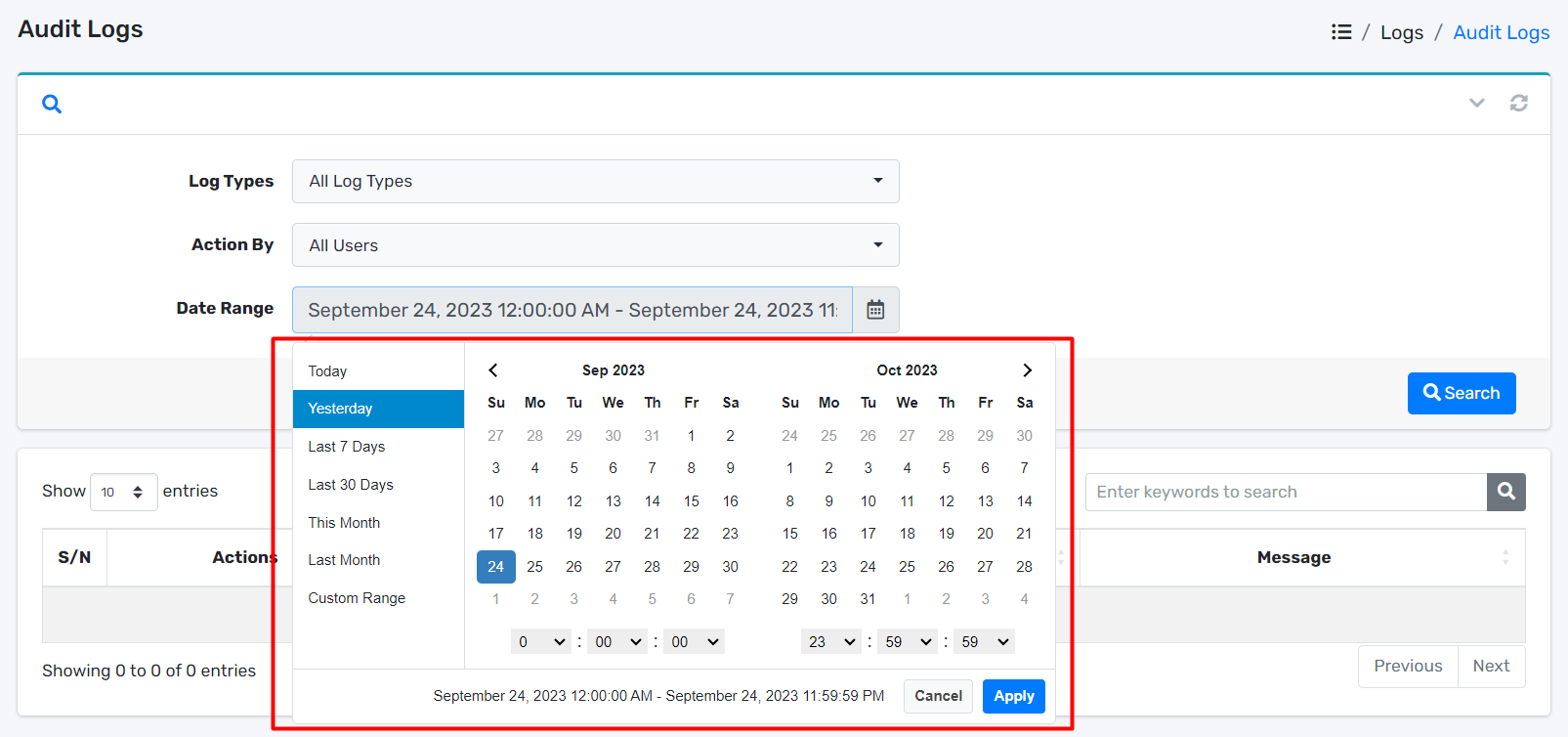
- You can pick the Date Range from the date range picker.
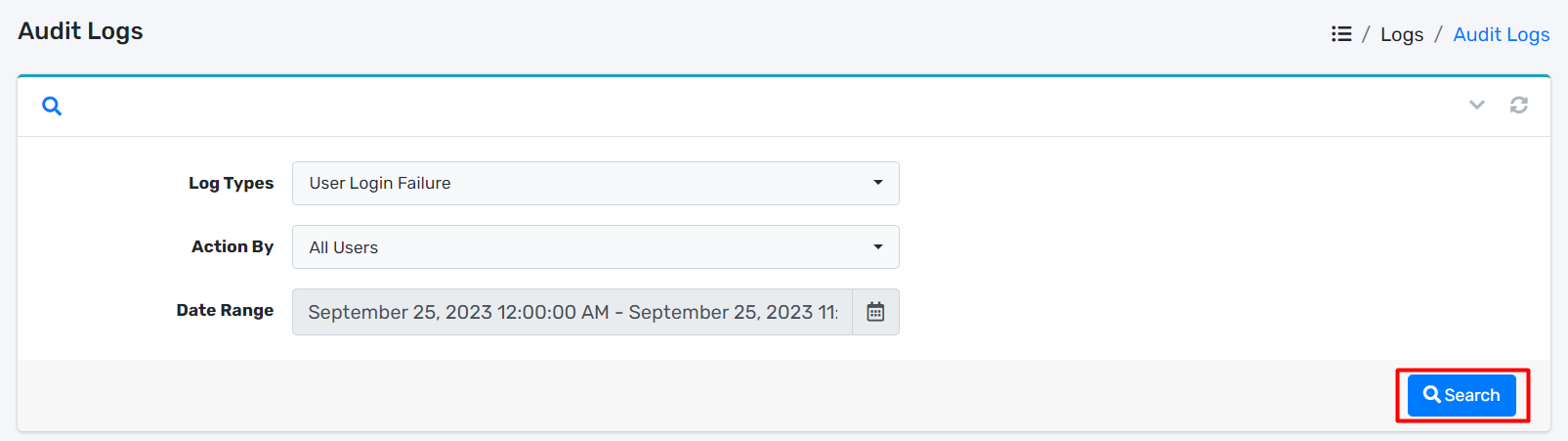
- After you have chosen the Log Types, User and Date Range, you can start filtering the table by clicking Search button.
# Event Logs
Navigation Menu
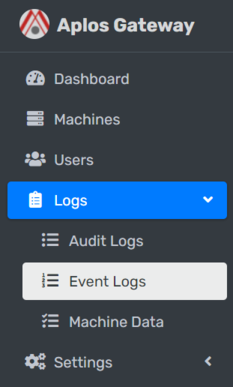
On the left sidebar, click on Logs dropdown and navigate Event Logs.
# Filter Log Category
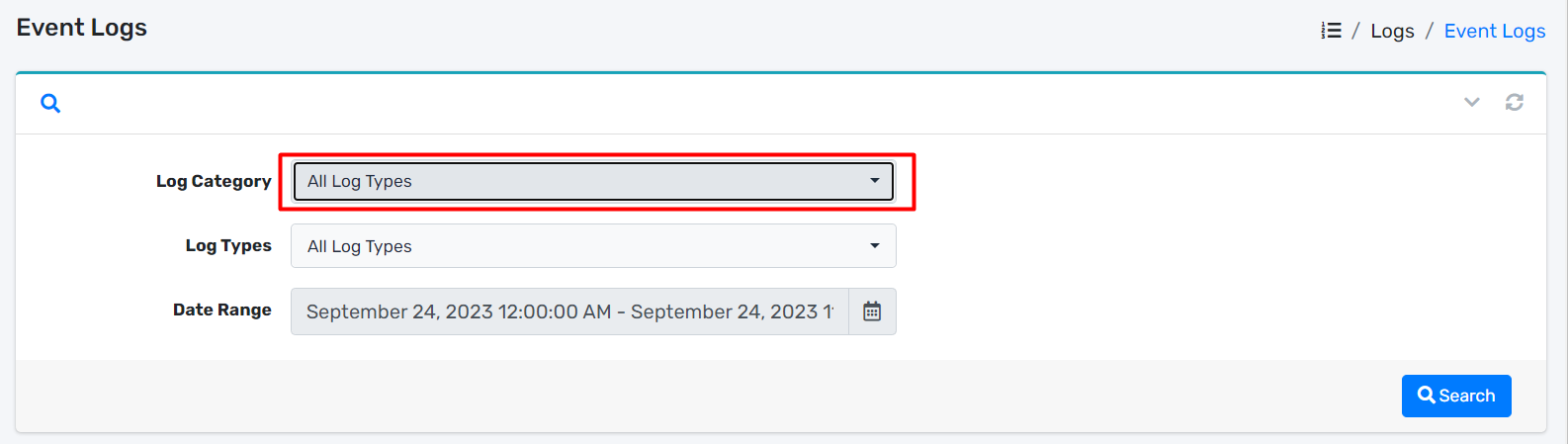
- Locate Log Category dropdown.
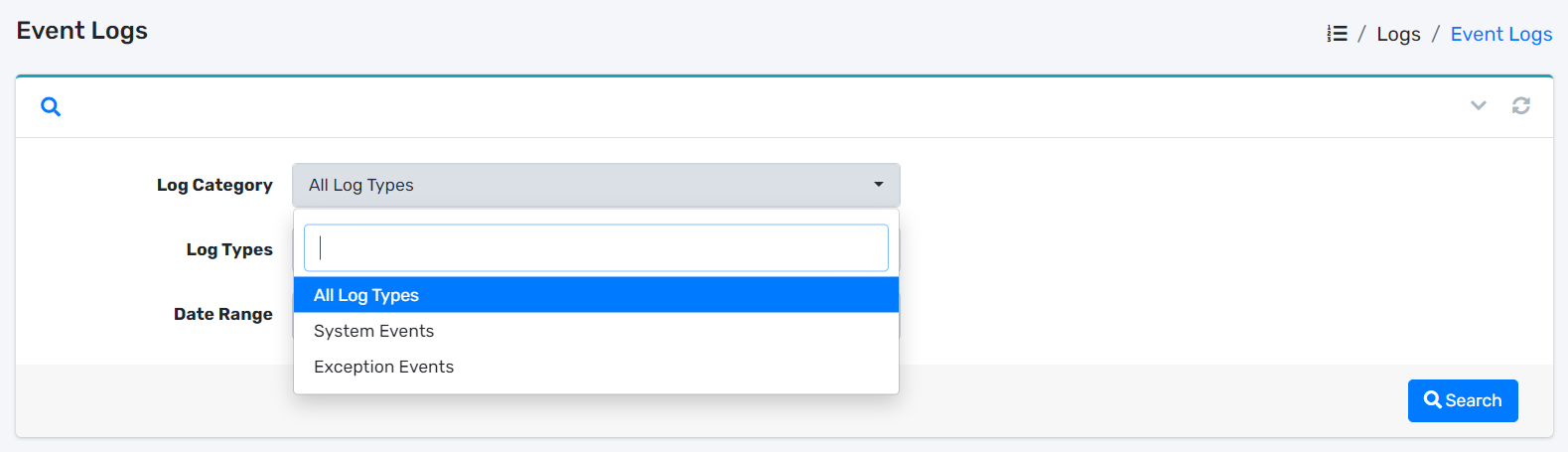
- You can choose the Log Category from the dropdown.
# Filter Log Types
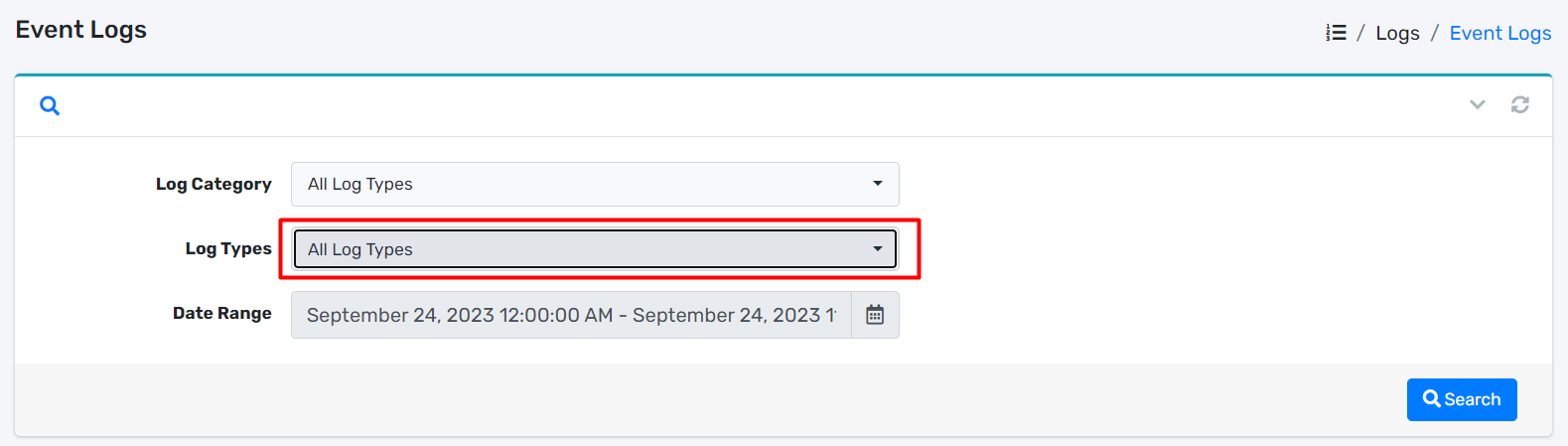
- Locate Log Types dropdown.
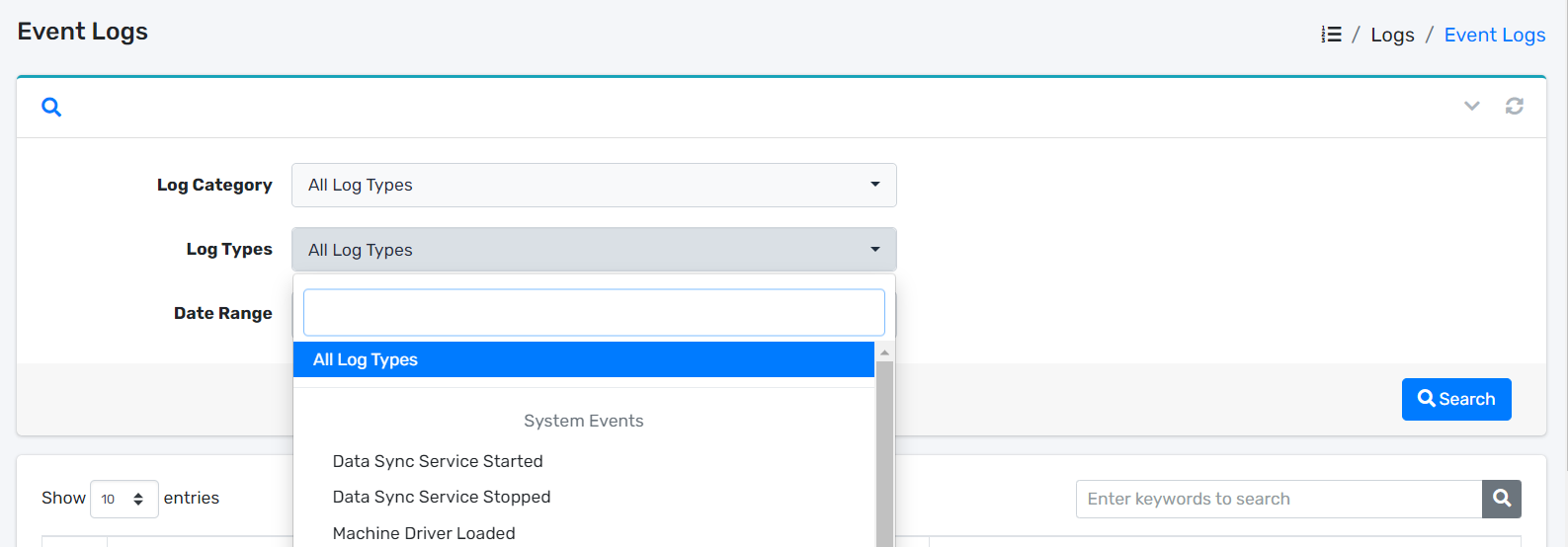
- You can choose the Log Types from the dropdown.
# Filter Date Range
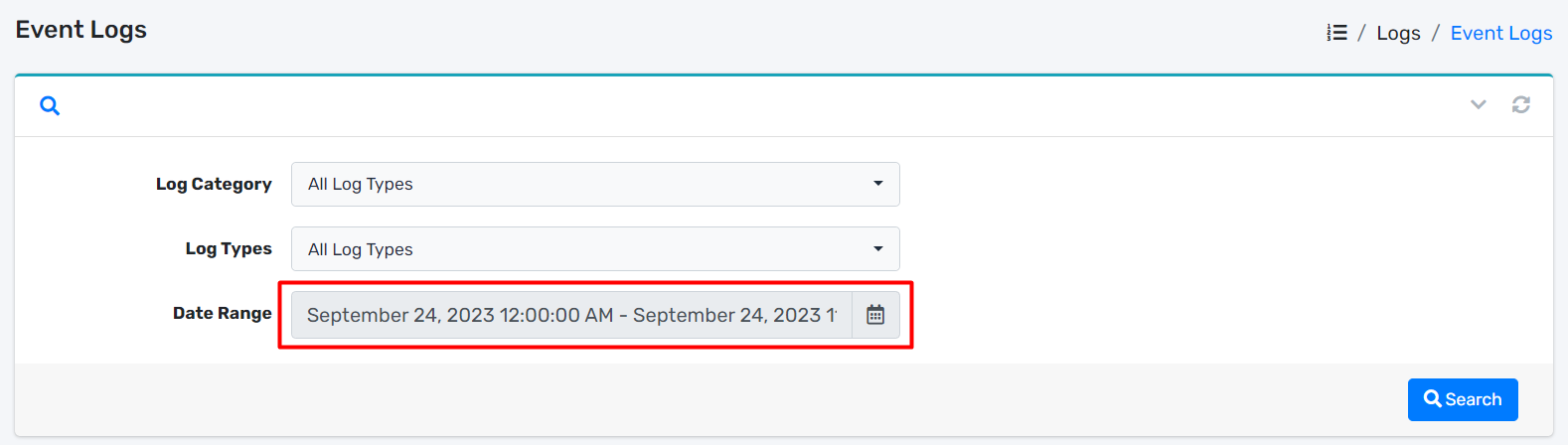
- Locate Date Range dropdown.
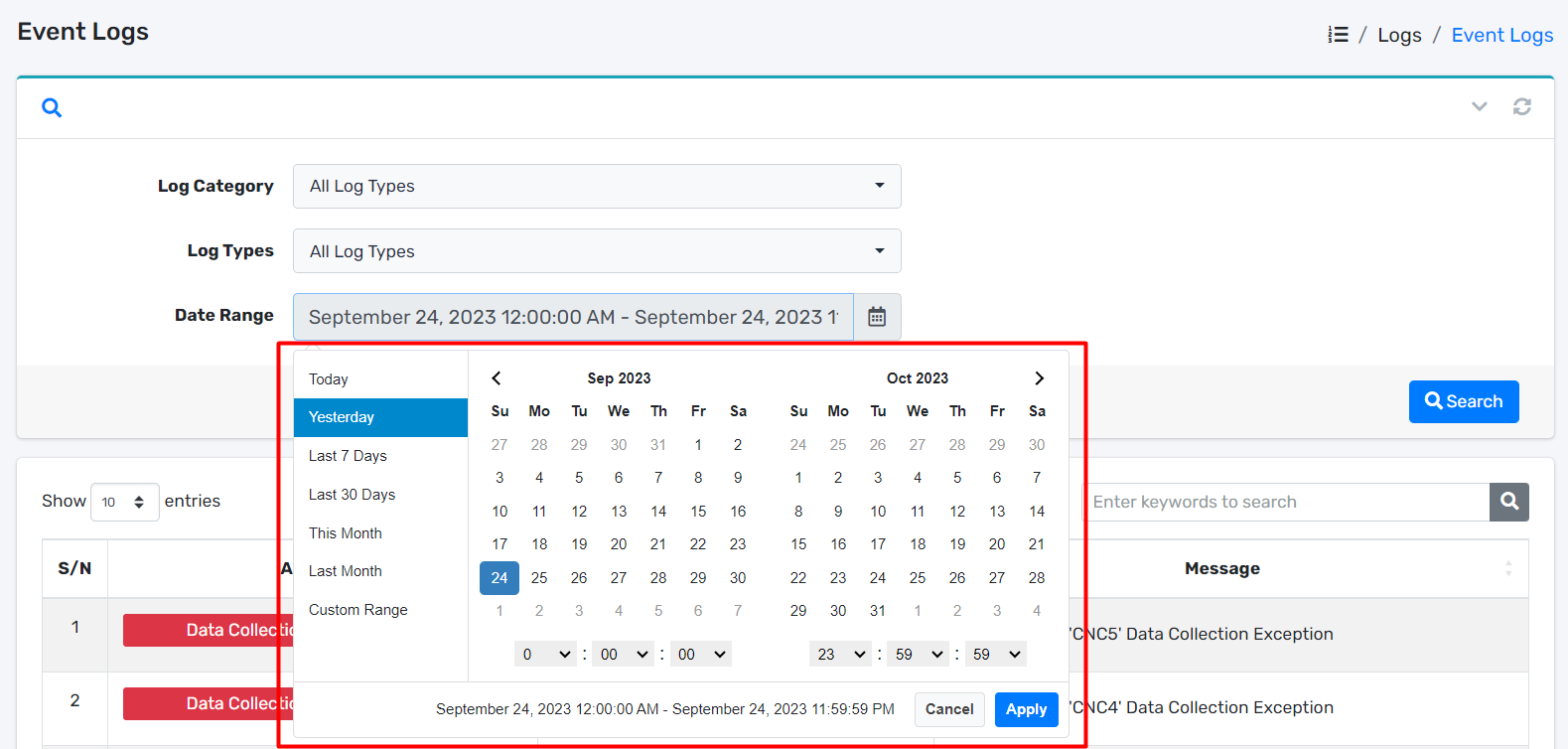
- You can pick the Date Range from the date range picker.
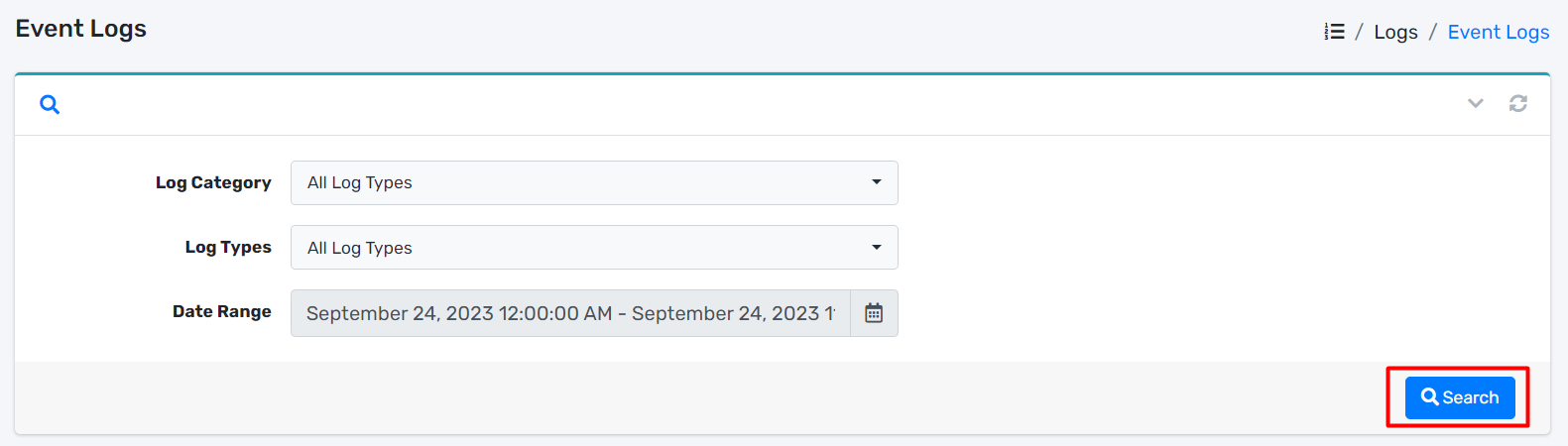
- After you have chosen the Log Category, Log Types and Date Range, you can start filtering the table by clicking Search button.
# Machine Data
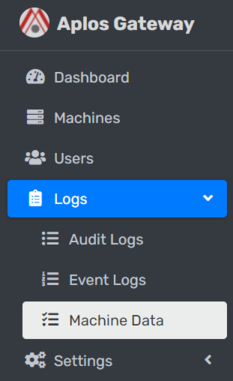
Navigation Menu
On the left sidebar, click on Logs dropdown and navigate Machine Data.
# All Machine Data
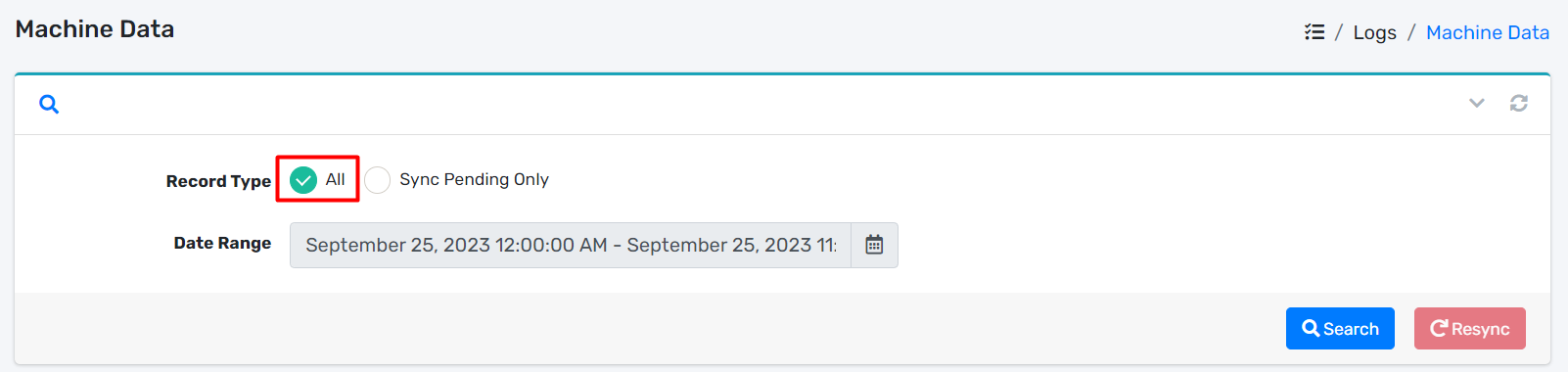
- Locate All radio button.
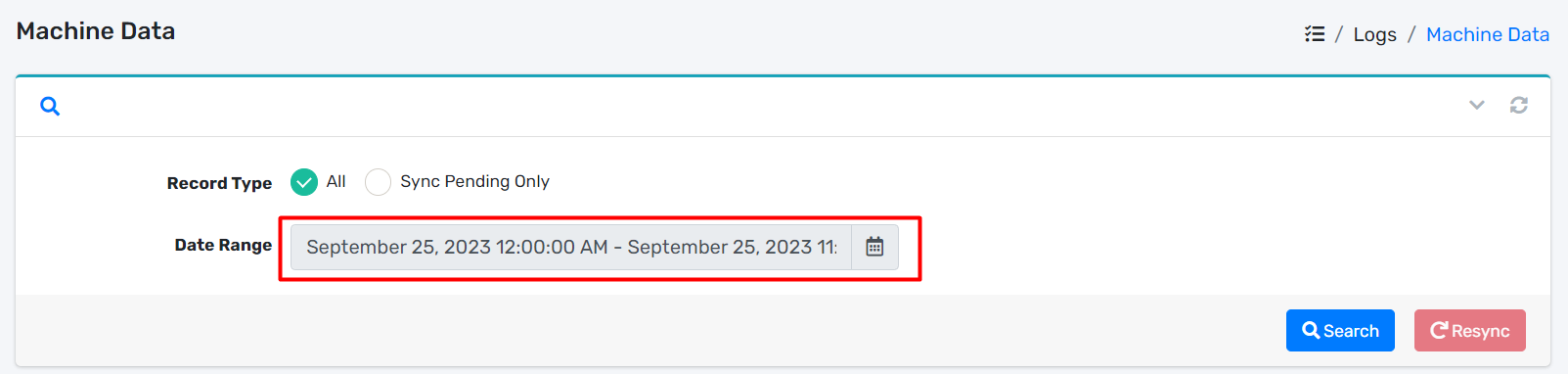
- Locate Date Range dropdown.
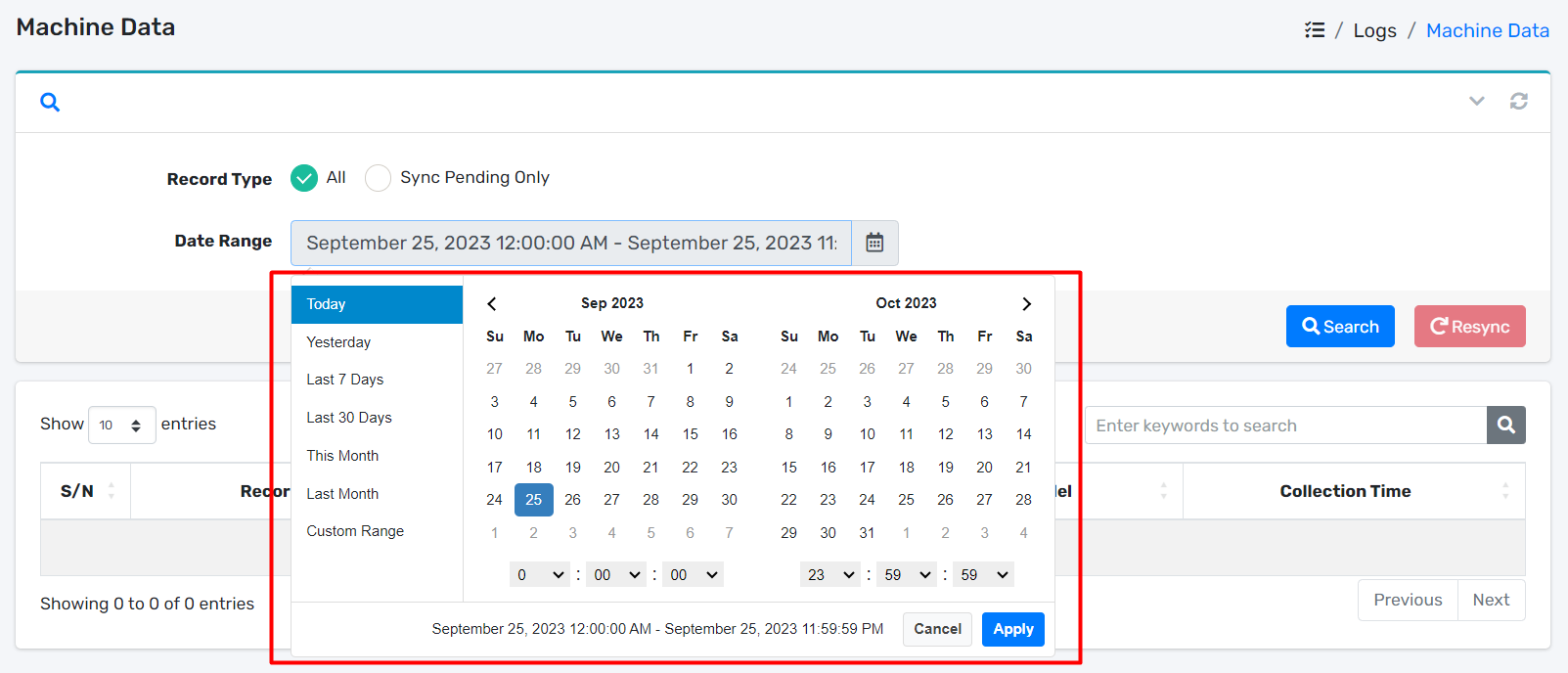
- You can pick the Date Range from the date range picker.
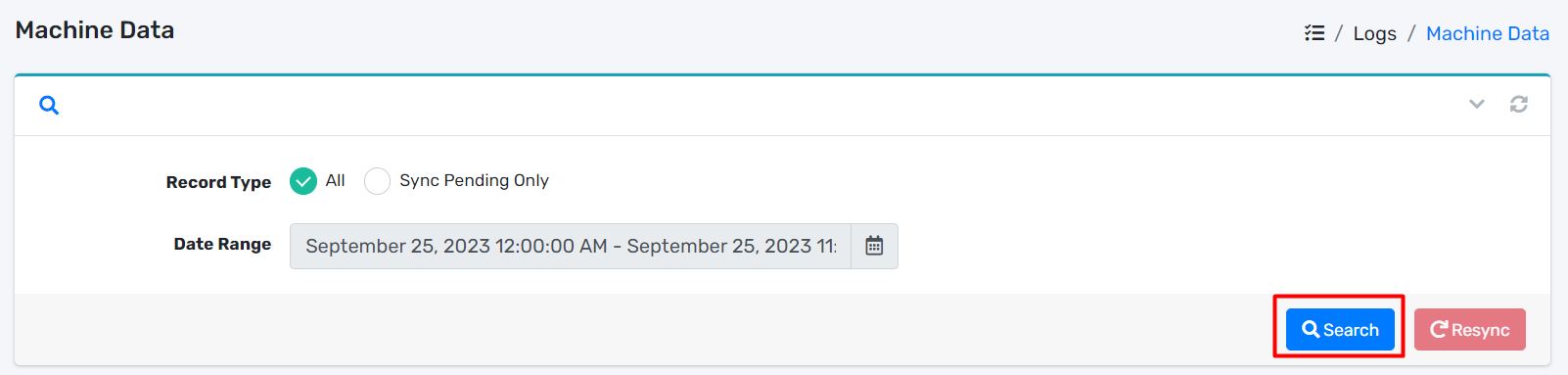
- After you have chosen Date Range, you can retrieve the data by clicking Search button.
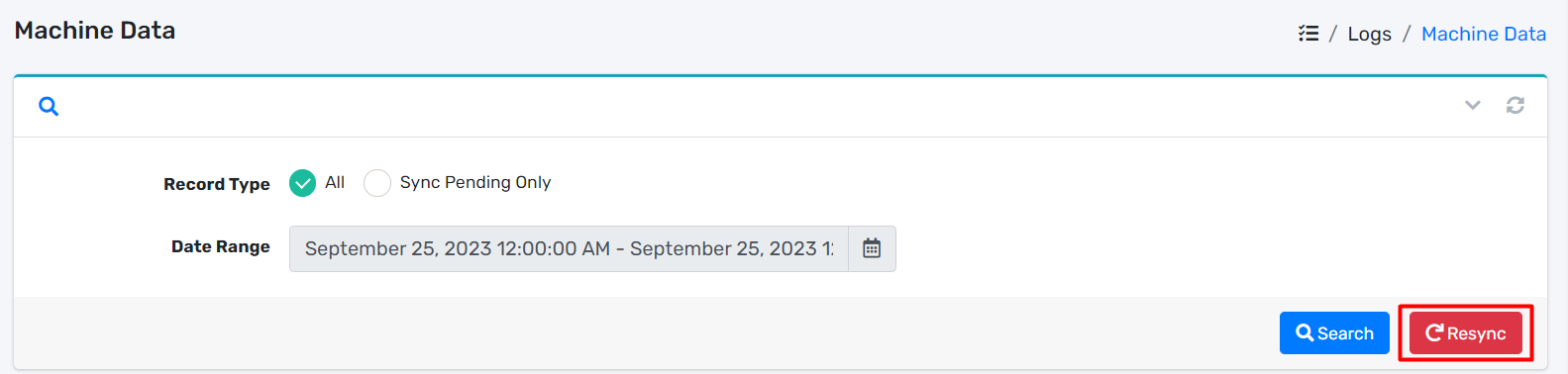
- Once you have hit the Search button, the Resync button will be enabled.
- Click on Resync button.
- It will open up a modal dialog.
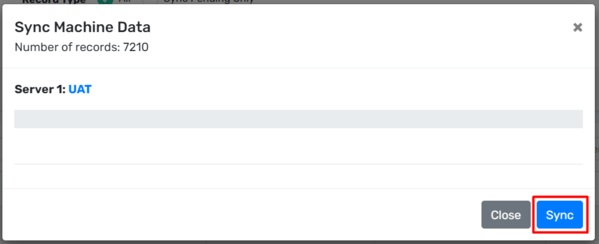
- Click on Sync button.
- It will start resyncing the data to the Aplos Yun.
# Sync Pending Only
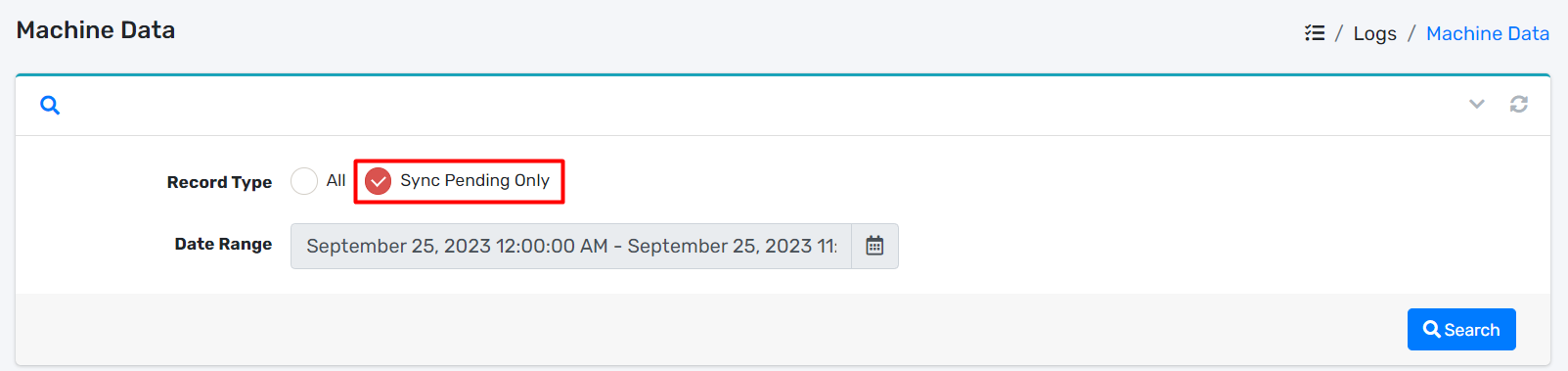
- Locate Sync Pending Only radio button.
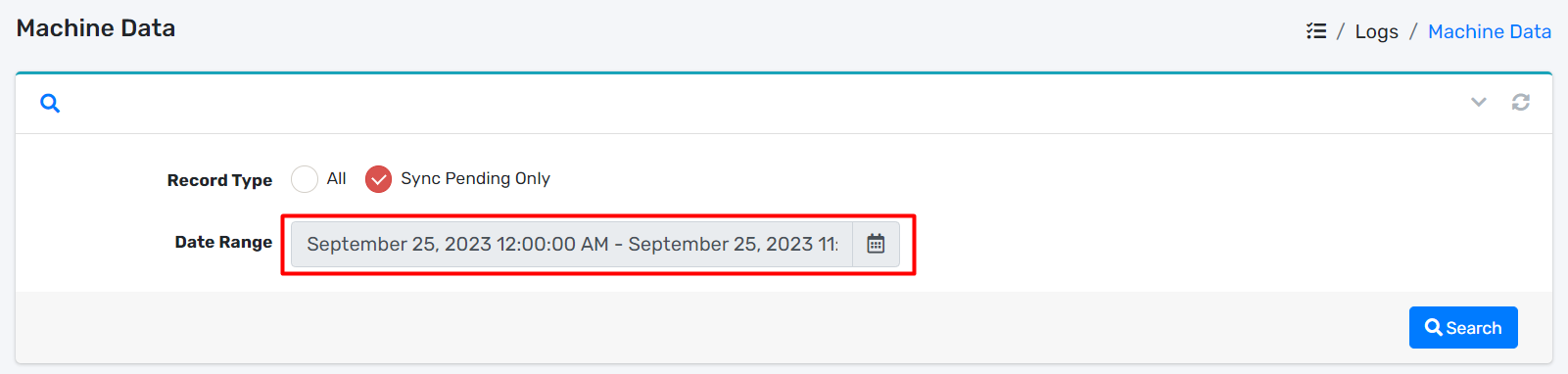
- Locate Date Range dropdown.
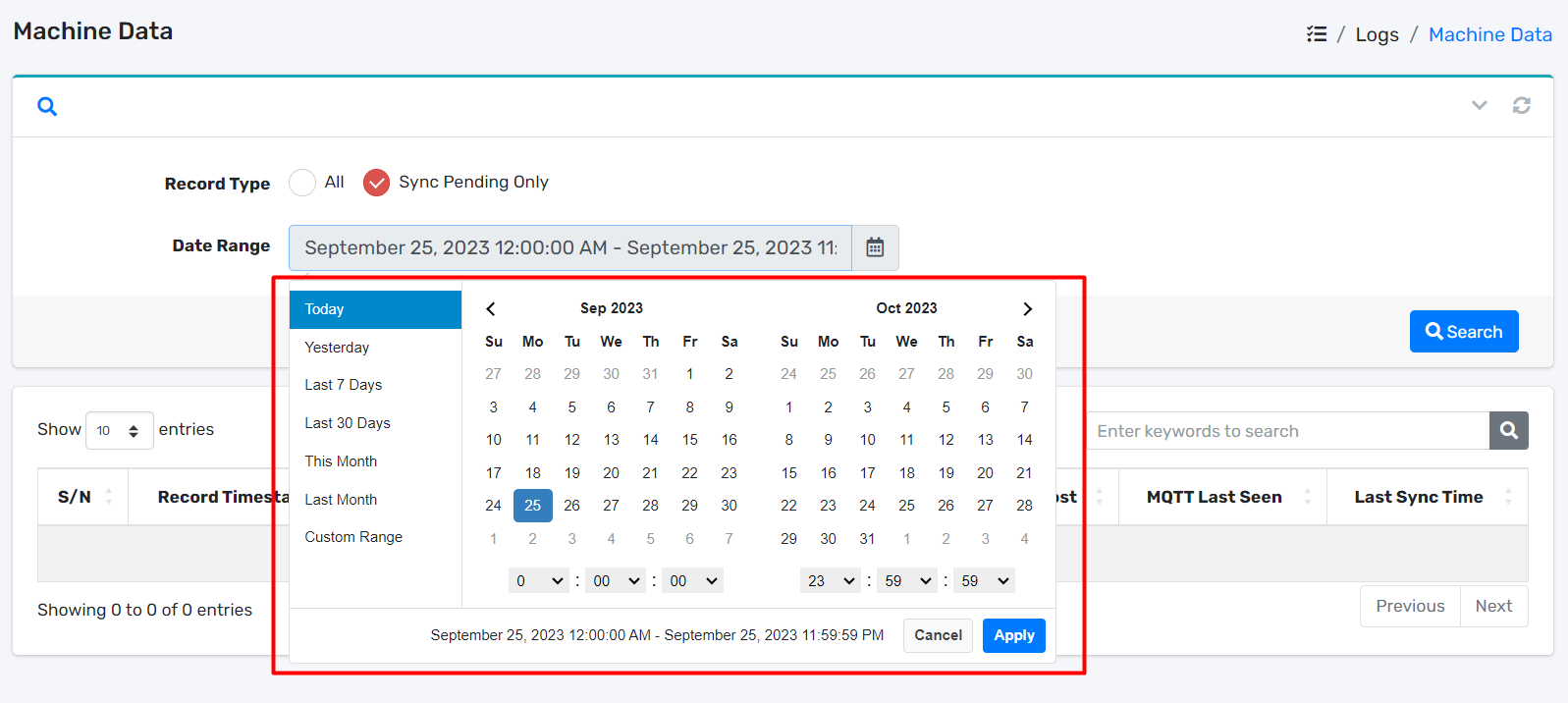
- You can pick the Date Range from the date range picker.
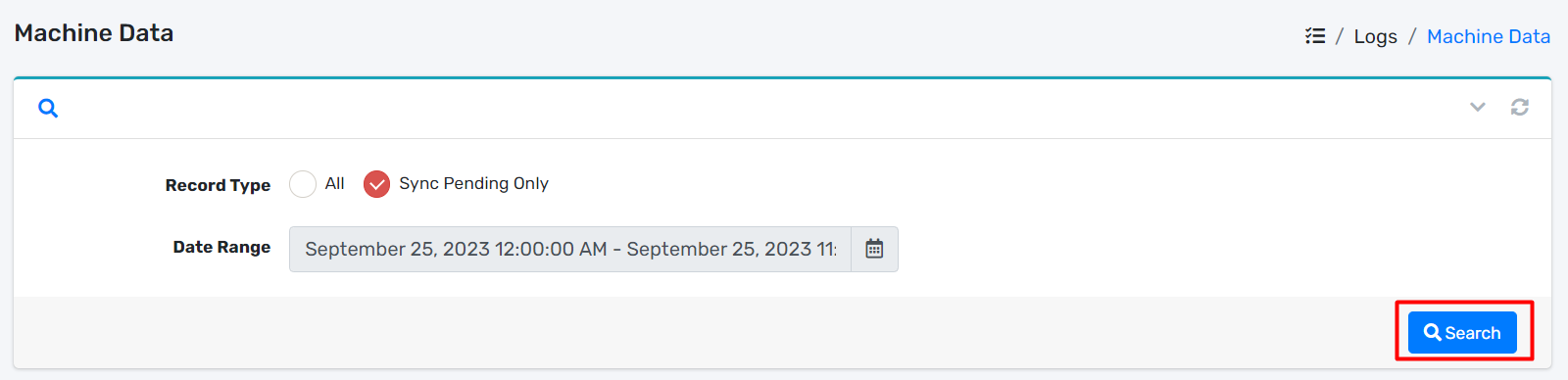
- After you have chosen Date Range, you can retrieve the data by clicking Search button.