
# First Time Setup
# Step 1: System Settings
Take Note
It is optional to input the Data Collection Service and Operation Panel Information.
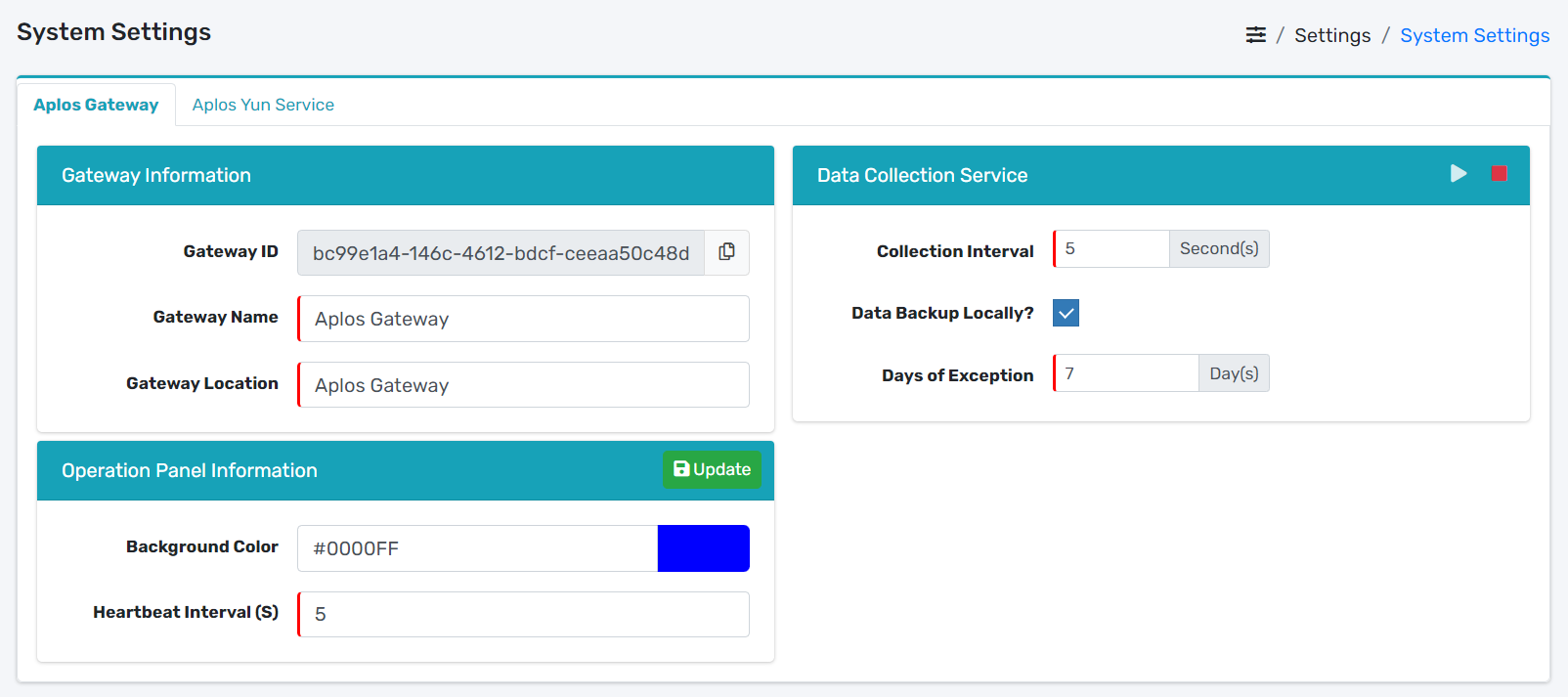
# Configure Gateway Information
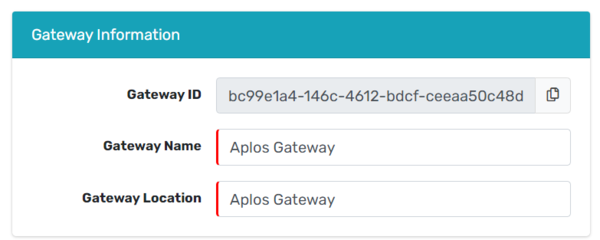
- Input Gateway Name and Gateway Location.
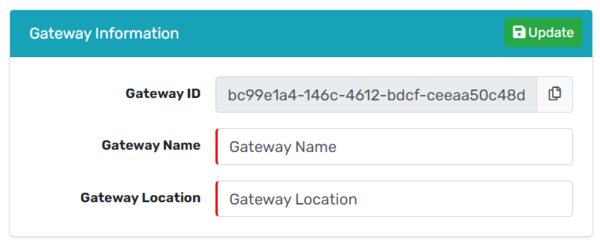
- Update button will appear at the top right corner of the Gateway Information.
- Update the information by clicking Update button.
# Configure Aplos Yun Service
Take Note
To connect Aplos Yun, you have to input the correct Web Service and MQTT Broker.
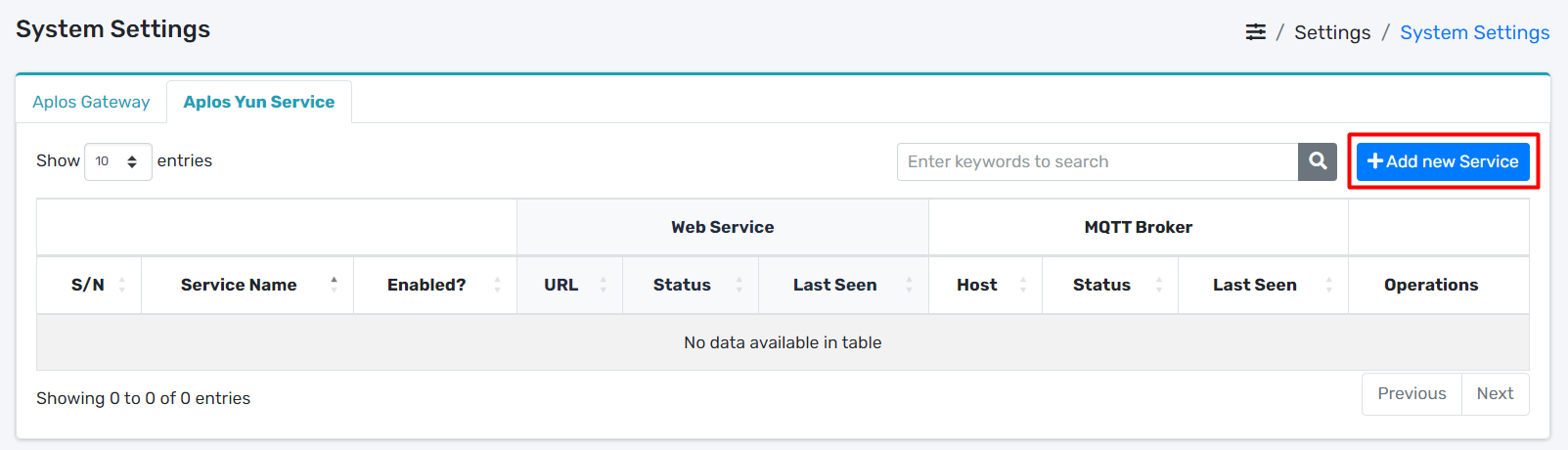
- Locate Add new Service button.
- It will open up a modal dialog.
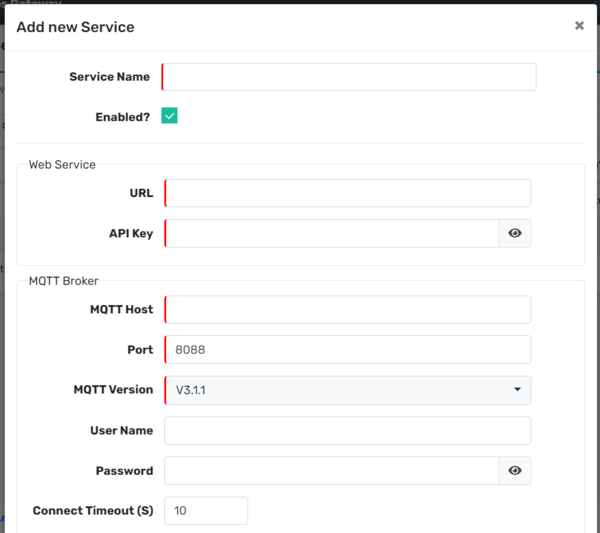
- Input Service Name.
- Input URL and API Key of Aplos Yun Url and API Key.
- Input MQTT Host, Port, MQTT Version, Username and Pasword of MQTT Broker.
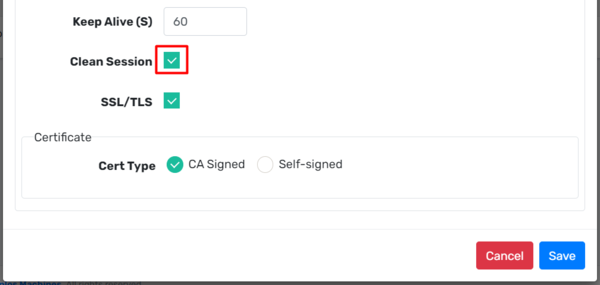
- Tick the checkbox of Clean Session.
- Save the information by clicking Save button.
# Step 2: Machine Types
Take Note
You have to import Machine Drivers in order to create Machine Types. Only import the Machine Drivers that you need.
# Import Machine Drivers
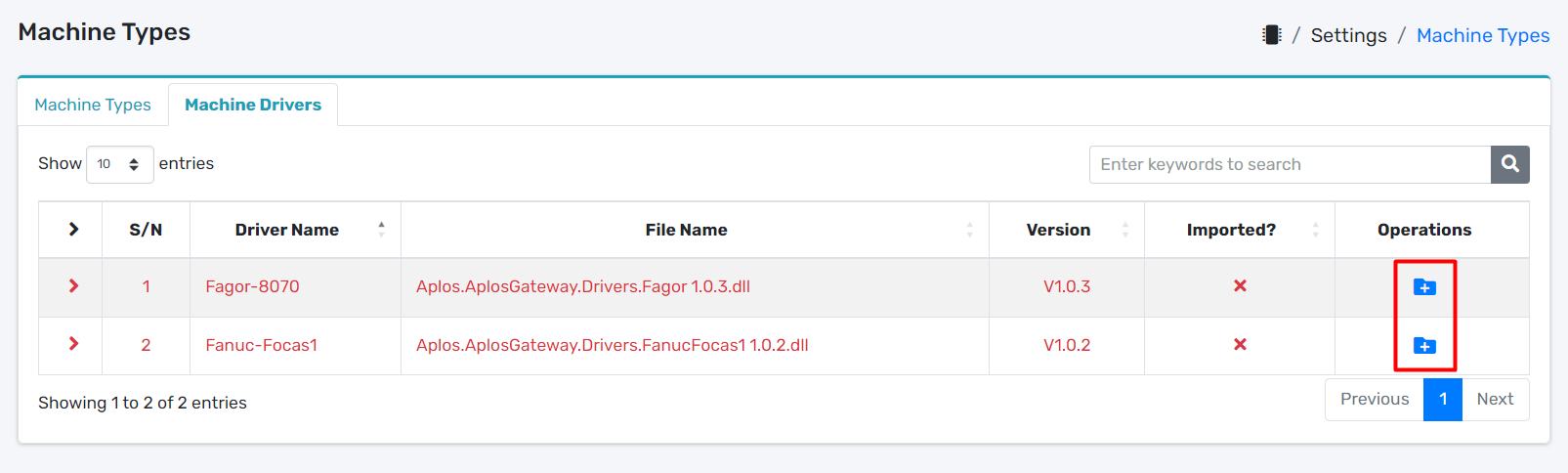
- Locate Import icon.
- It will open up a modal dialog.
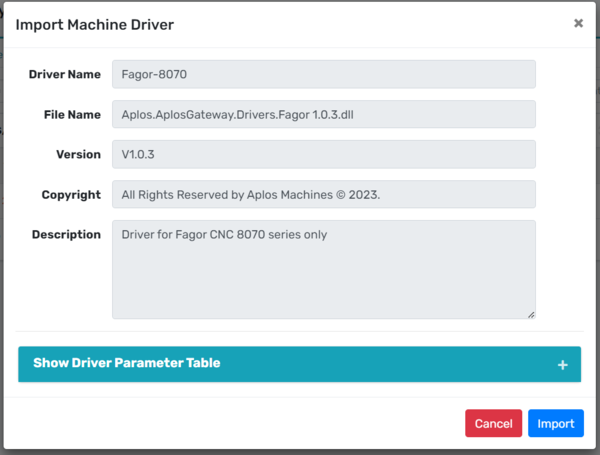
- Import the driver by clicking Import button.
# Configure Machine Types
Take Note
After you have imported the Machine Drivers, you can start adding Machine Types.
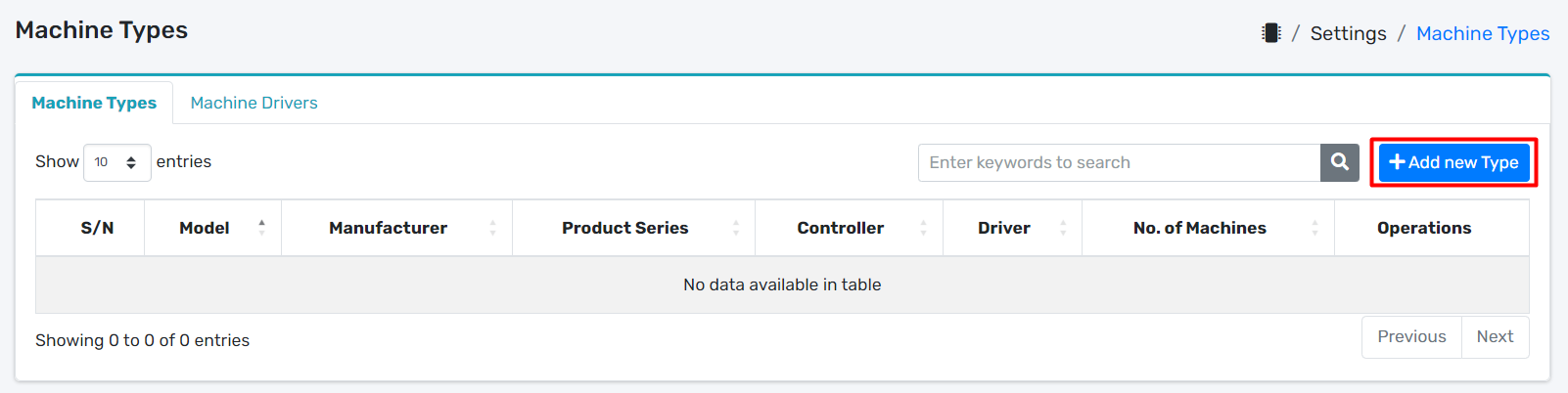
- Locate Add new Type button.
- It will open up a modal dialog.
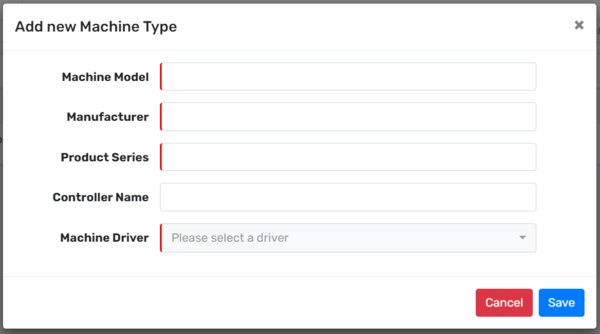
- Input Machine Model, Manufacturer, Product Series, Controller Name and Machine Driver.
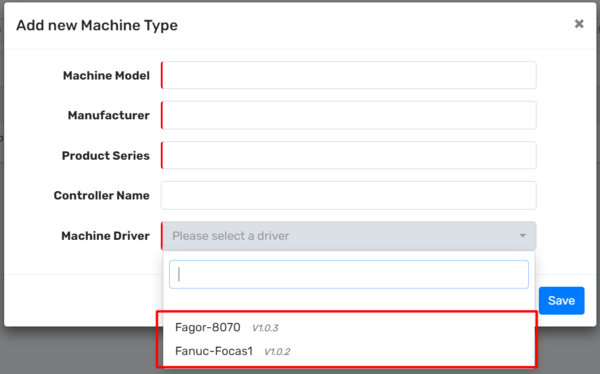
- If you are using Fanuc driver, choose Fanuc driver.
- If you are using Fagor driver, choose Fagor driver.
- Save the information by clicking Save button.
# Step 3: Machines
Take Note
Before you Add Machines, make sure you have known the IP Addresses of all the machines in your factory.
# Add Machines
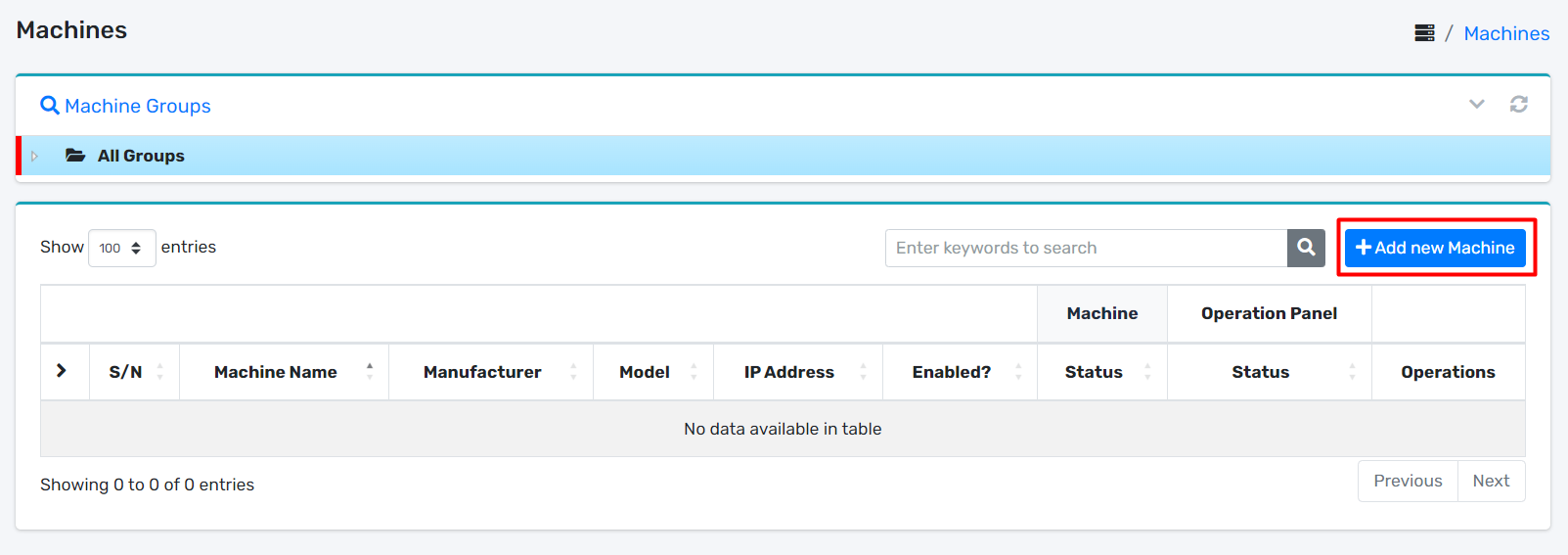
- Locate Add new Machine button.
- It will open up a modal dialog.
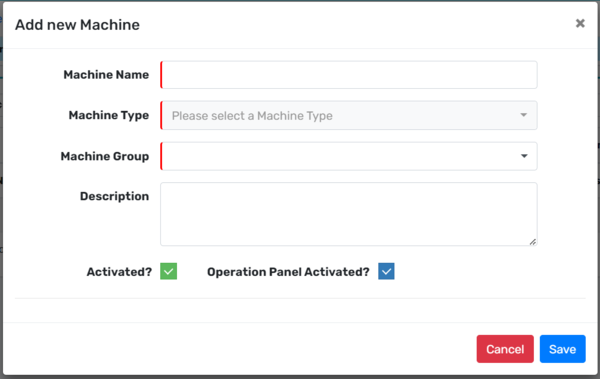
- Input Machine Name, Machine Type, Machine Group.
- Input Description. [optional]
- For Machine Type, you can refer Fanuc and Fagor.
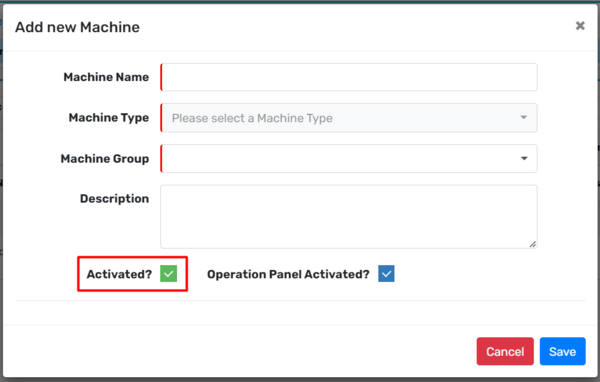
- You can enable the machine by giving a tick to the Activated? checkbox.
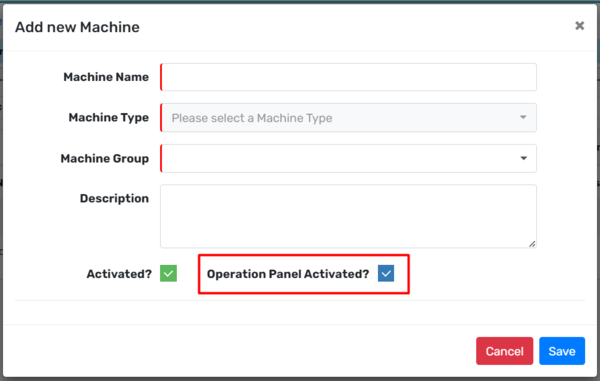
- You can also enable the operation panel of the machine by giving a tick to the Operation Panel Activated? checkbox.
- Lastly, save your information by clicking Save button.
Take Note
There are only Machine Type with Fanuc driver and Fagor driver. Choose Machine Type according to your machines.
# Fanuc
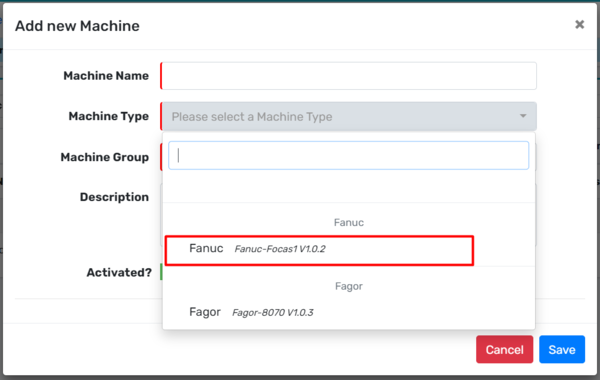
- Choose Machine Type that uses Fanuc driver.
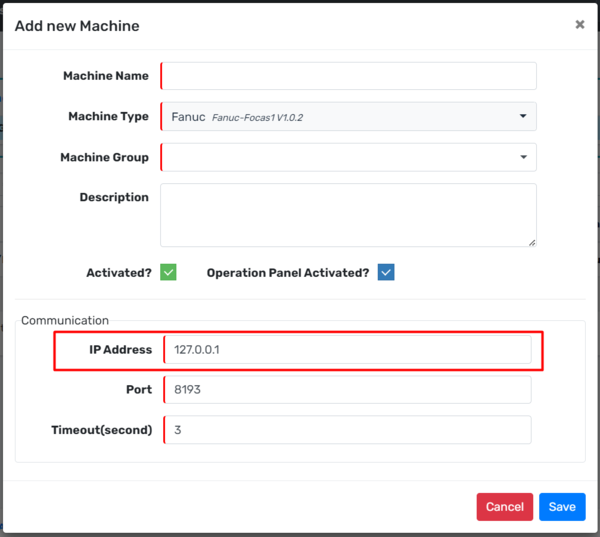
- Input the correct IP Address of your machine.
# Fagor
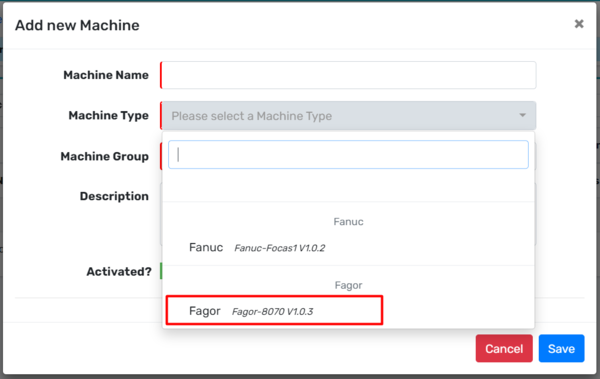
- Choose Machine Type that uses Fagor driver.
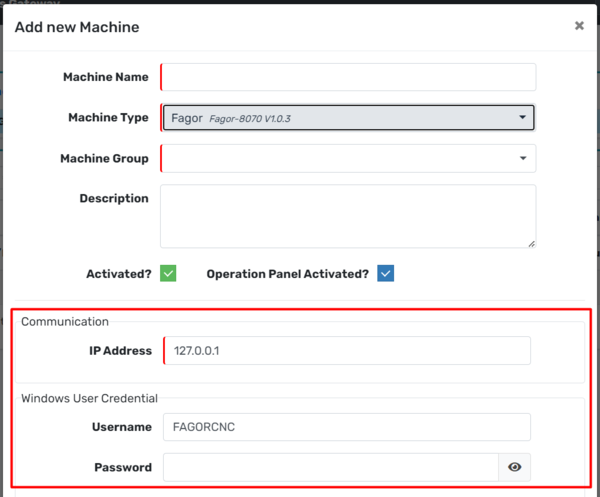
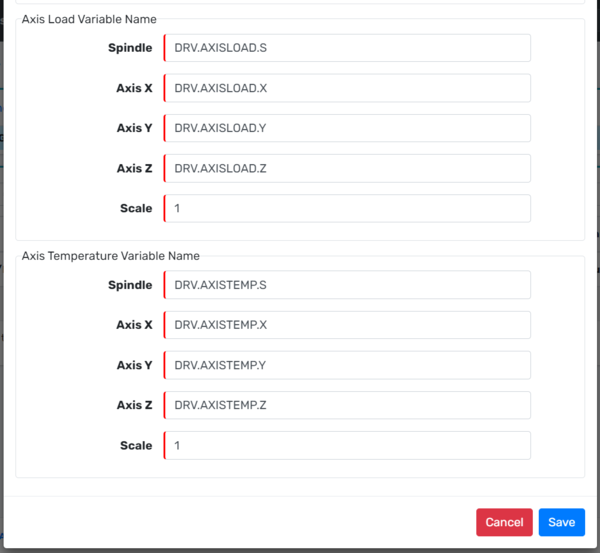
- Input the correct IP Address of your machine.
- Input the correct Username and Password.