
# Machine Management
Machine Management
In this tab, it allows for management of connected machines, i.e. add,edit, delete.
- Includes machine type, grouping, connectivity info, ip address of the machines.
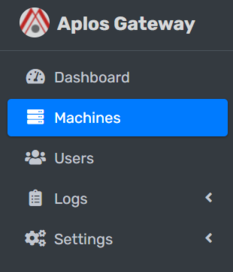
Navigation Menu
On the left sidebar, navigate Machines.
# Machine Groups
Take Note
Machine Groups are used to group between machines.
# Add Machine Group

- Locate Machine Groups.
- Right click on it.
- Locate Add button.
- It will open up a modal dialog.
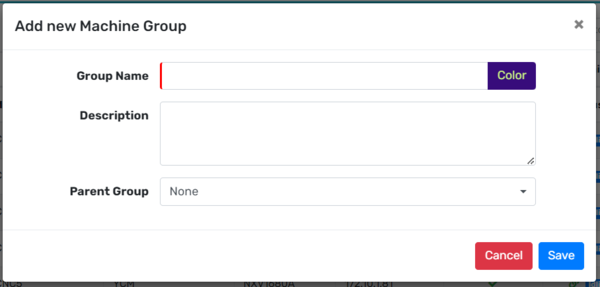
- Input Group Name.
- Input Description and Parent Group. [Optional]
- Save the information by clicking the Save button.
# Edit Machine Group
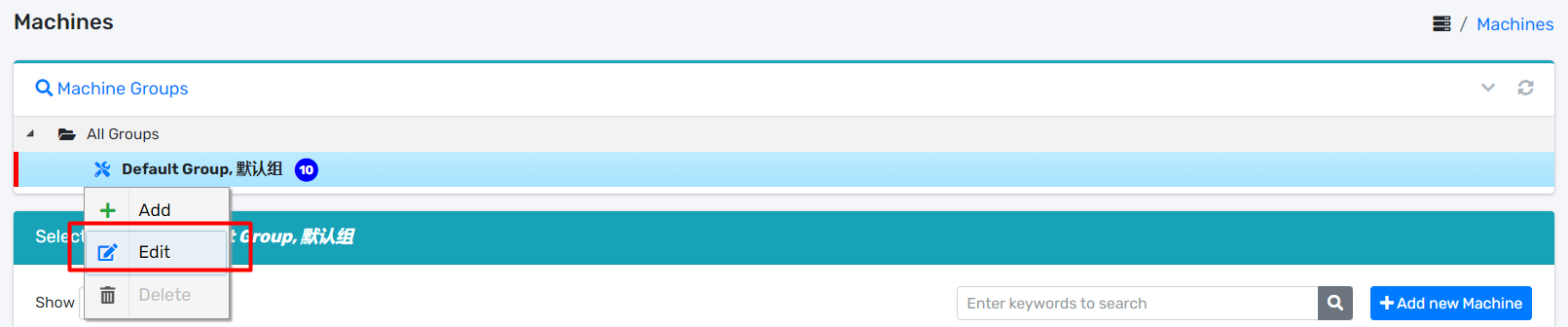
- Locate Machine Groups.
- Click on it.
- It will collapse down the number of Machine Groups created.
- Right click on one of them.
- Locate Edit button.
- It will open up a modal dialog.

- Update Group Name, Description, Parent Group.
- Update the information by clicking the Update button.
# Delete Machine Group
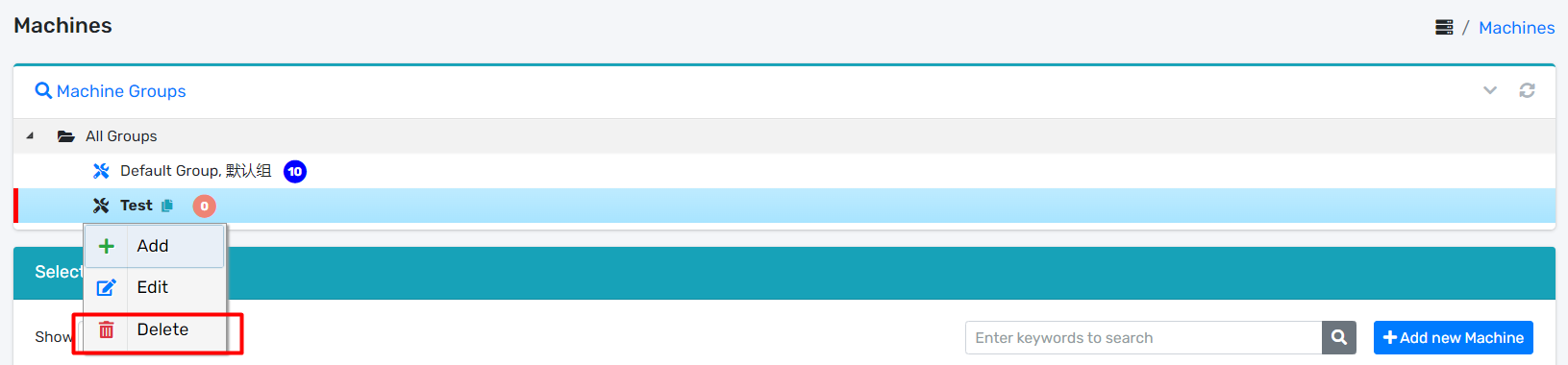
- Locate Machine Groups.
- Click on it.
- It will collapse down the number of Machine Groups created.
- Right click on one of them.
- Locate Delete button.
- It will open up a modal dialog.
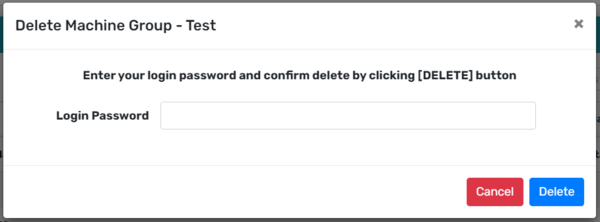
- Input correct Login Password.
- Delete the Machine Group by clicking the Delete button.
# Machines
Take Note
Configure Machines to perform data collection of the machines.
- Before you Add Machines, make sure you have configured Machine Types in System Settings.
# Add Machine

- Locate Add new Machine button.
- It will open up a modal dialog.

- Input Machine Name, Machine Type, Machine Group.
- Input Description. [Optional]
- For Machine Type, you can refer Fanuc and Fagor.
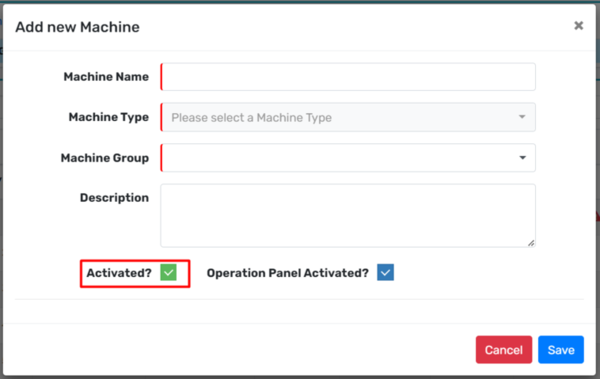
- You can enable the machine by giving a tick to the checkbox.
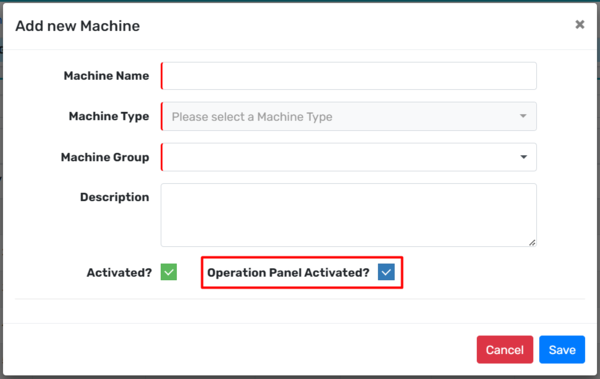
- Not only that, you can also enable the operation panel of the machine by giving a tick to the checkbox.
- Lastly, save the information by clicking the Save button.
# Fanuc
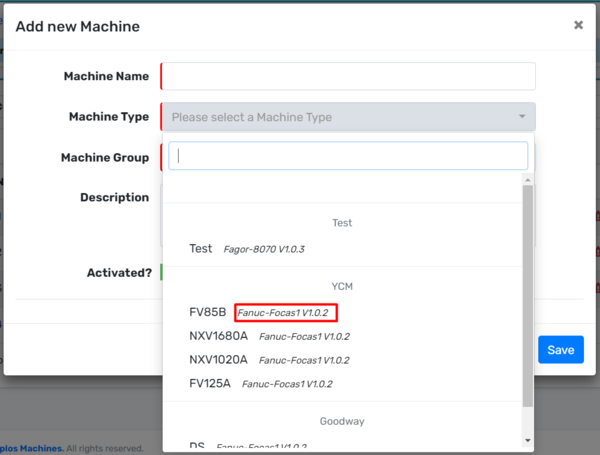
- Pick the machine type which contains Fanuc version from the dropdown.
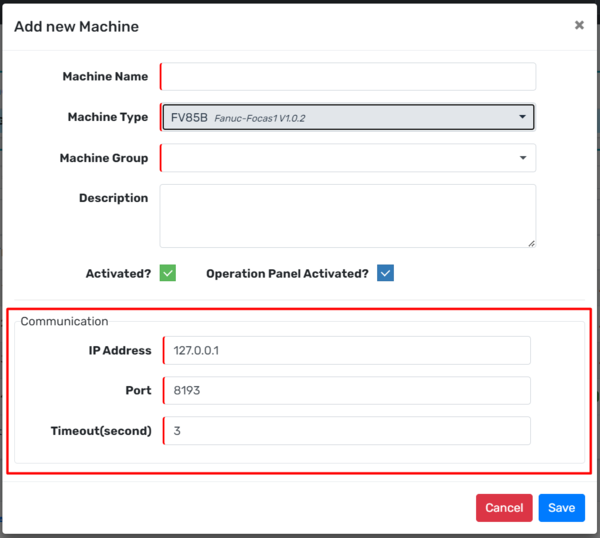
- Input correct IP Address, Port and Timeout for the machine.
# Fagor
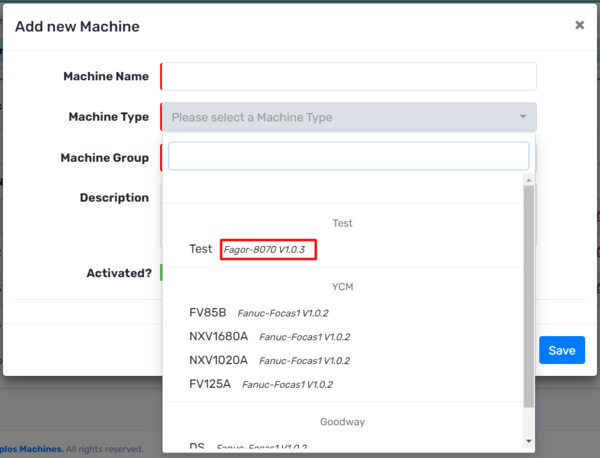
- Pick the machine type which contains Fagor version from the dropdown.
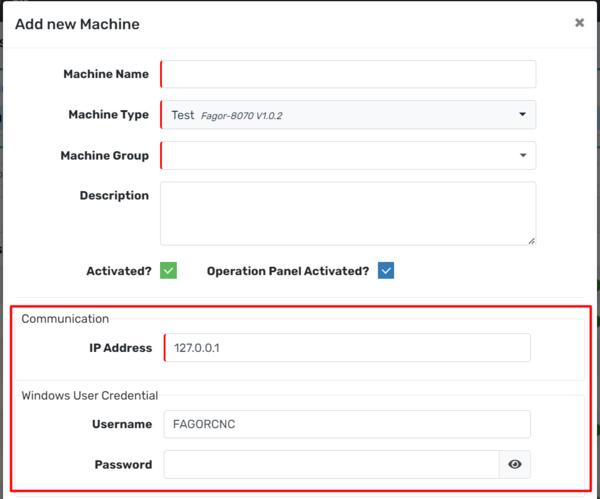
- Input correct IP Address, Username and Password for the machine.
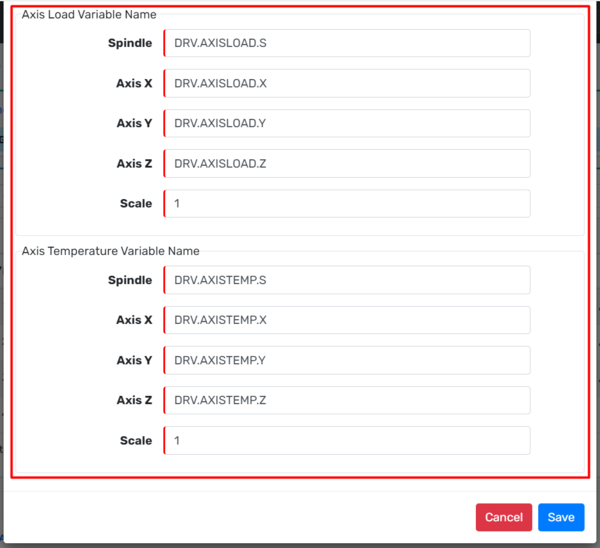
- Input the Axis Load Variable Name and Axis Temperature Variable Name. [Optional]
# Edit Machine

- Locate Edit icon.
- It will open up a modal dialog.
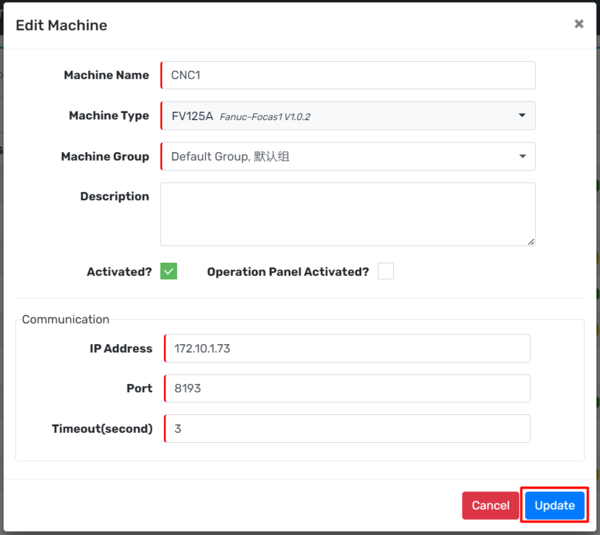
- You can edit all the informations in the dialog box.
- Update the information by clicking the Update button.
# Delete Machine
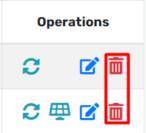
- Locate delete icon button.
- It will open up a modal dialog.
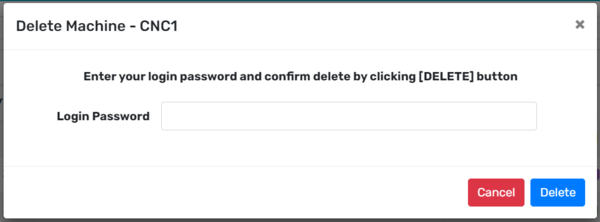
- Input correct Login Password.
- Delete the machine by clicking the Delete button.